CDQ integration in SAP MDG: How-to guide
A step-by-step how-to guide for setting up CDQ as a provider of trusted business partner data in SAP Master Data Governance (MDG), cloud edition, covering CDQ service configuration and connecting the two systems.

Welcome to the quick how-to on setting up CDQ as a data provider for business partner data in SAP Master Data Governance (MDG), cloud edition. In this guide, I will introduce you to a powerful integration that helps you streamline workflows for creating new business partners and ensures top-notch data quality.
SAP MDG, cloud edition, seamlessly integrates with CDQ to access trusted data from diverse trade registers and other open and paid data sources. This integration accelerates processes and enhances data quality for managing both new entries and continuous maintenance of customer and vendor information.
The following solution diagram demonstrates how business partner data can be retrieved using CDQ from external data sources, and how this data flows through multiple integration options from SAP MDG, cloud edition, to the connected S/4HANA or Business Suite systems.
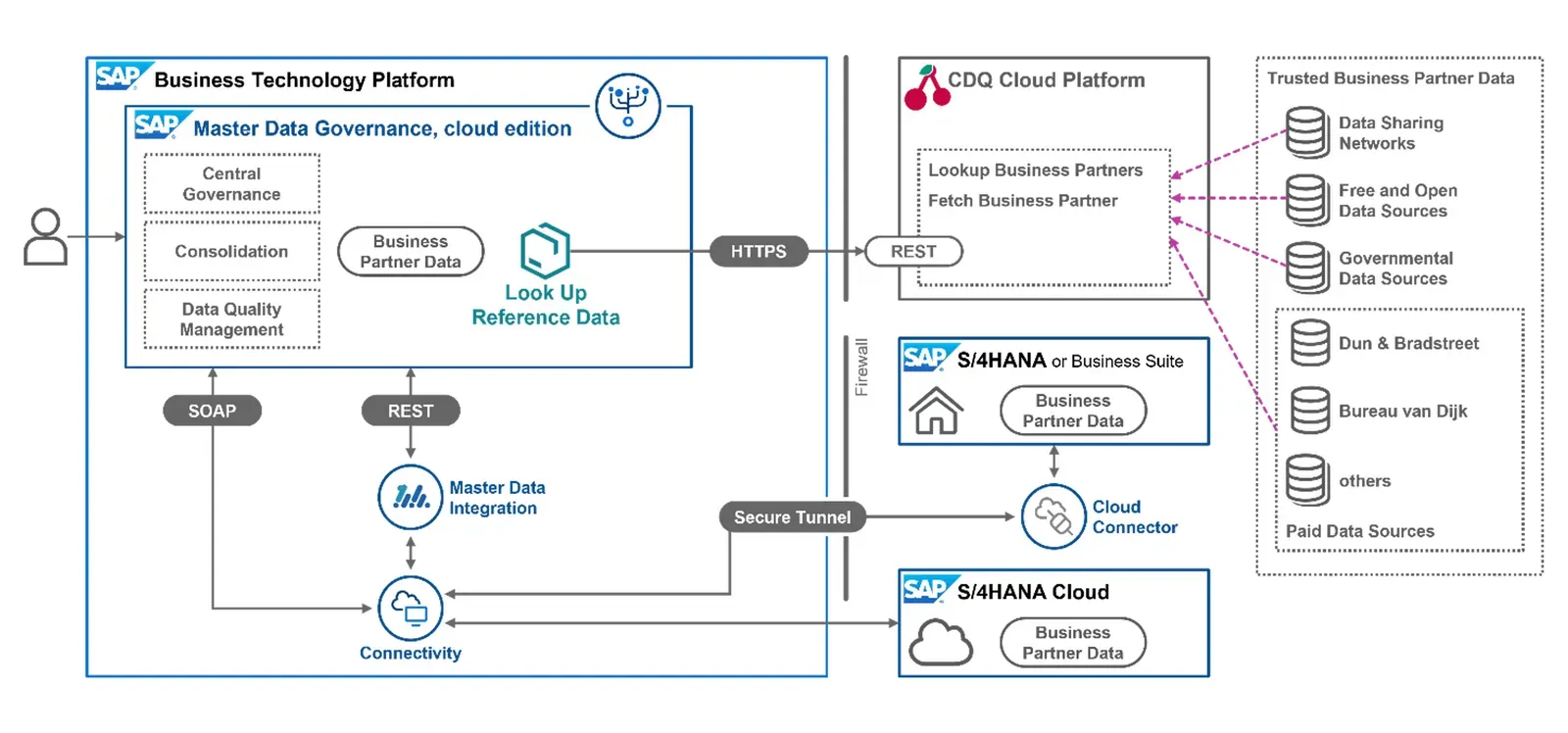
Integration of CDQ as a provider of trusted business partner data in SAP MDG, cloud edition
You can access CDQ connected external data sources through a REST API, which is facilitated via two endpoints:
- Lookup Business Partners endpoint is used to search and retrieve potential matches
- Fetch Business Partners endpoint fetches detailed data for a selected match. (More details available in the SAP ODM API documentation)
With the component Look Up Reference Data, these endpoints are integrated into SAP MDG, cloud edition. In the Communication Scenario 0825, this component is made available to processes and applications under Central Governance, and I will guide you through this setup in the following steps.
Please note that this guide does not delve into the integration between SAP MDG, cloud edition, and S/4HANA or the Business Suite. Multiple pathways for such integrations are possible, with one straightforward method using SOAP for a dedicated system. For more integration scenarios, including those extending beyond SAP S/4HANA, Master Data Integration can be employed.
Part 1: CDQ service access and configuration
Prerequisite: access to the CDQ Apps based on a valid agreement.
1. Configure the Lookup
The CDQ API endpoint Lookup Business Partners offers a range of configuration options to accommodate various use cases, such as feature flags and specific parameters. Within our service architecture, these settings and options can be grouped into one configuration bundle, which is then stored with a unique ID. This configuration, once established, can be linked to an API key. When the API is accessed using this key, the associated configuration is applied.
For the optimal integration with SAP MDG, cloud edition, specific configurations are essential.
1a. Navigate to the Business Partner Lookup Configurator app.
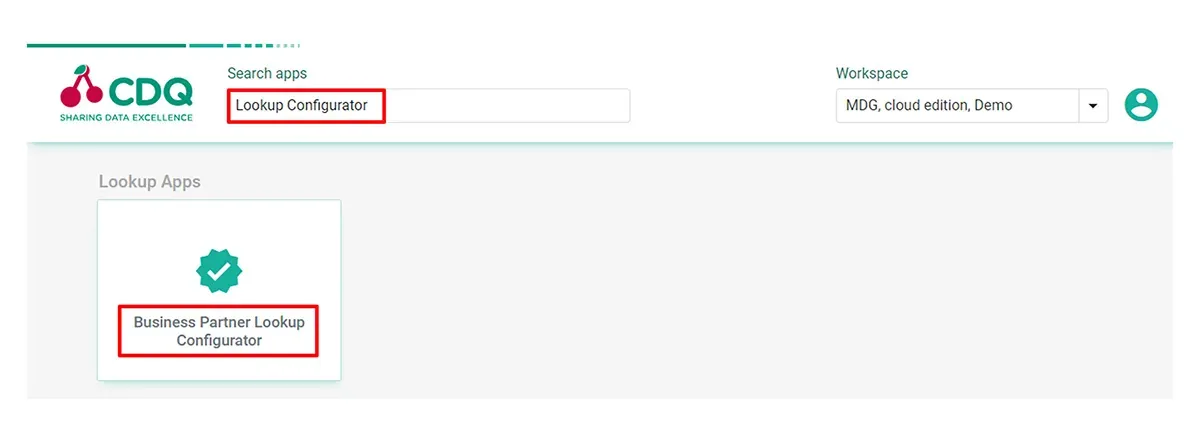
Business partner lookup configurator in CDQ Apps
1b. Create a new configuration
Assign a descriptive configuration name for easy identification in the future. You can also activate two feature flags in the Features On field: Goldenrecord Inline and Goldenrecord Sorted to generate Golden Records by consolidating information from multiple sources into one consistent record, with a prioritization of data sources that is customizable and country-specific.
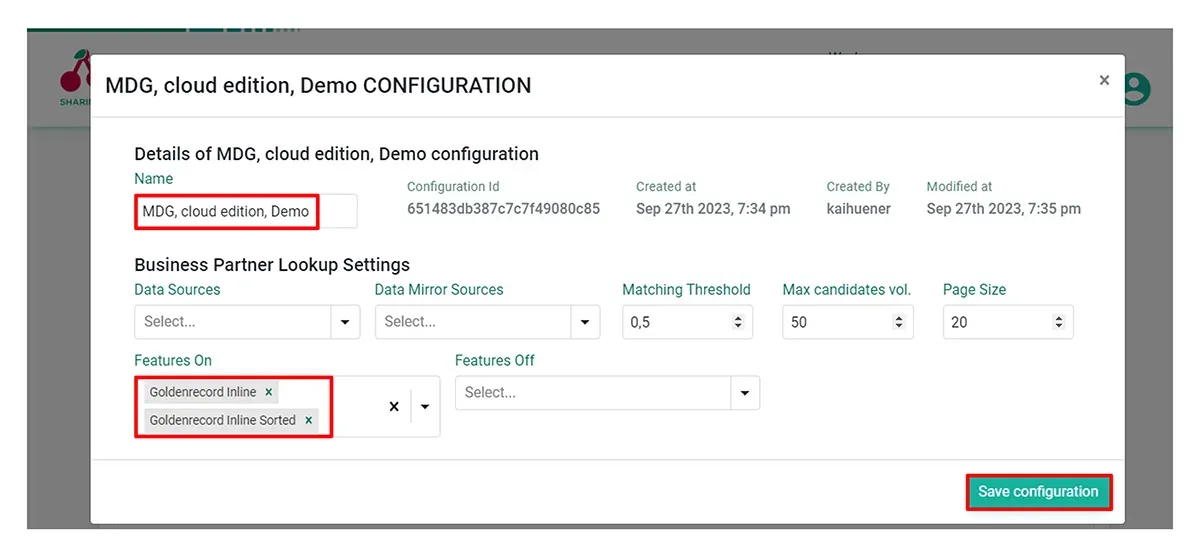
Business partner lookup configuration details in the CDQ Apps
2. Create and configure an API key
Navigate to the API Key Management app and select Create New API Key. Enter a descriptive name for this API key to easily identify it during future configurations. Upon confirming, a popup with both a Client ID and a Client Secret is prompted. You will use these details for the connectivity setup in SAP MDG, cloud edition, in the following steps.
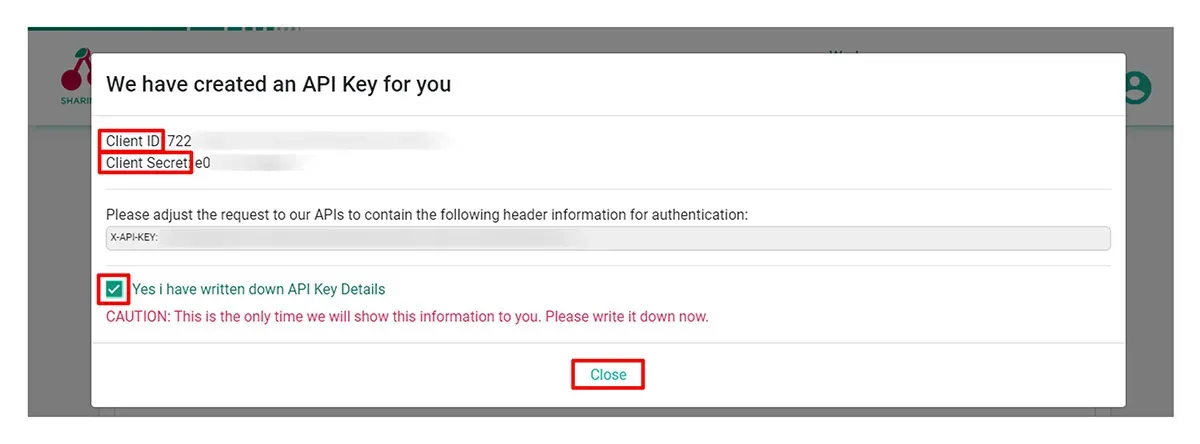
CDQ credentials for the outbound communication in an SAP MDG communication system
To ensure that the lookup service aligns with the configuration, click See Details within the API Key Management app. Upon selecting previously defined lookup configuration, the lookup configuration is linked to the API key. As a result, every time the lookup service is requested through this API key, the two activated feature will be automatically applied.
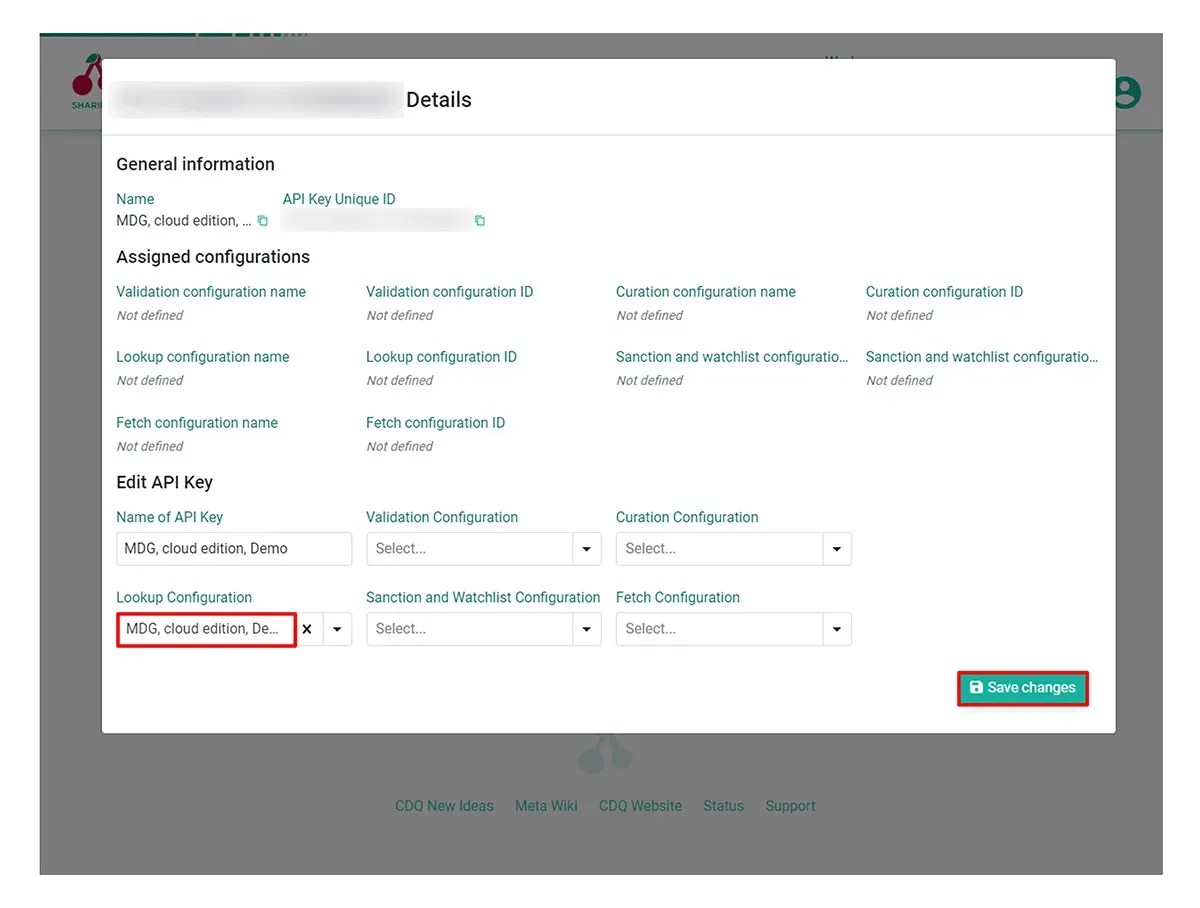
Lookup configuration in the API key details
3. Download content pack
Navigate to the Content Pack Management app, generate, and download a fresh content pack to your local system.
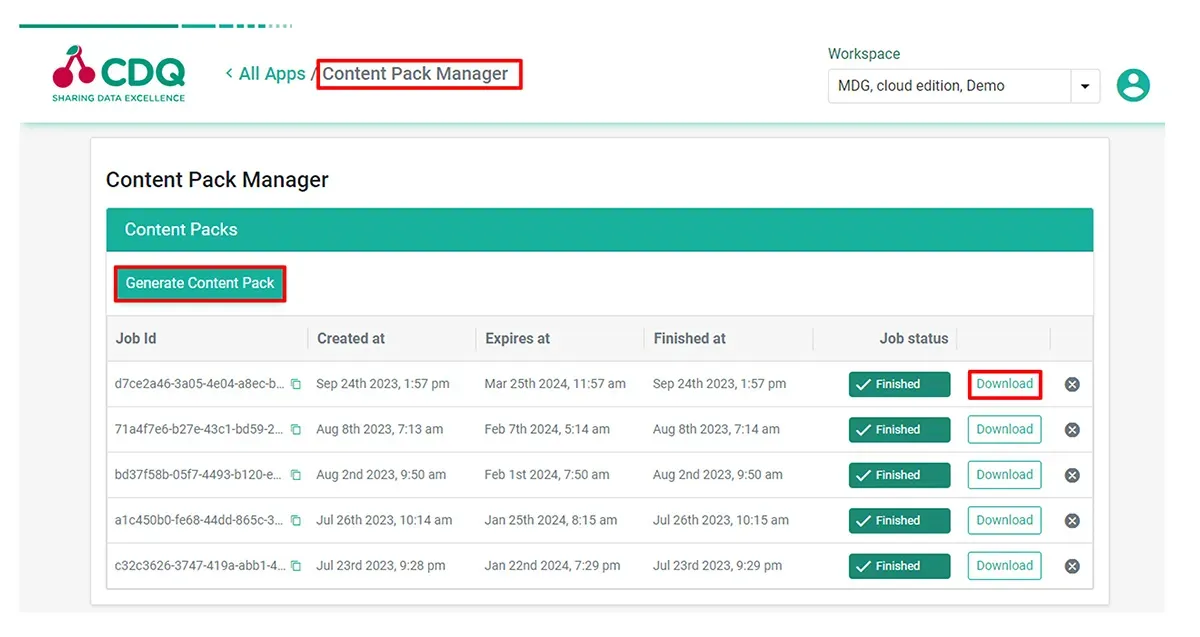
Content pack management app to download pre-configured metadata according to SAP ODM
Within the content pack, there are several Excel files containing metadata aligned with specific SAP ODM business partner concepts. You will import these files as Business Configurations into SAP MDG, cloud edition in the next steps.
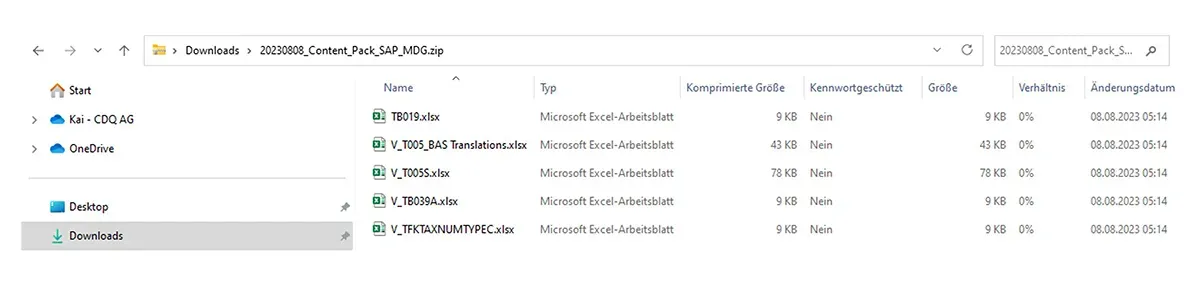
Content pack with metadata according to SAP ODM business partner
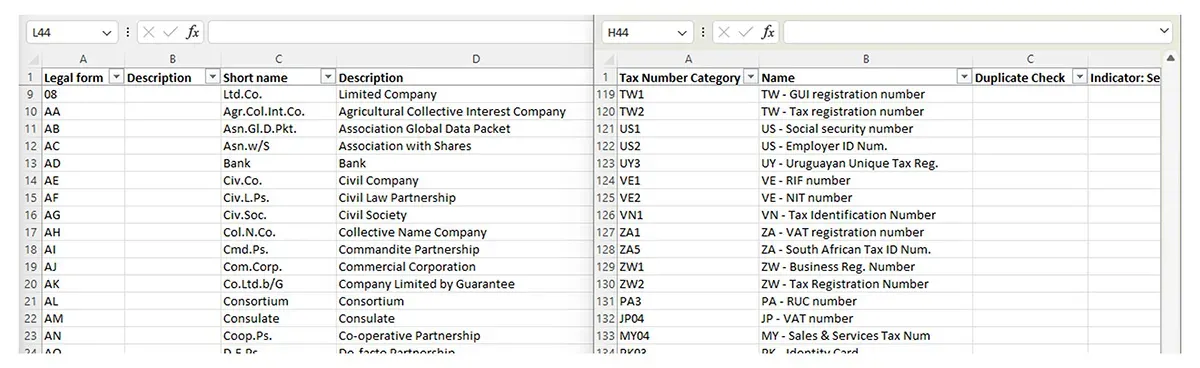
Excel files in the content Pack with legal form (left) and tax number (right) metadata
4. Activate data sources
Go to Global Settings app and select the Reference Data Source Management section and activate the desired data sources.
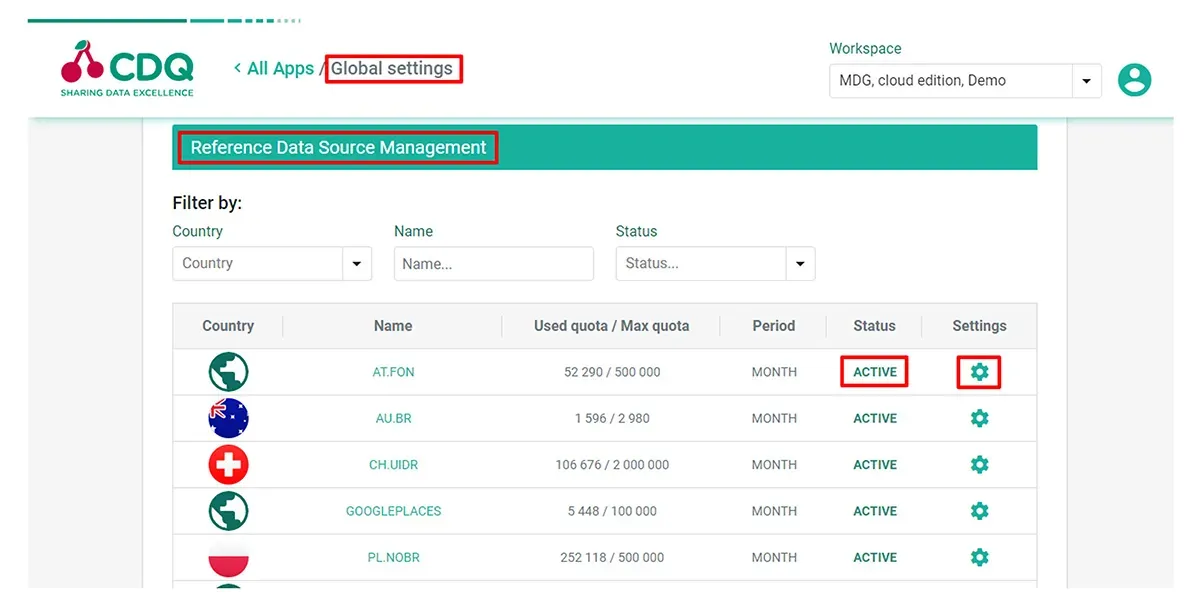
Global account settings to manage terms, credentials, quotas, and status of trusted business partner data sources
Part 2: Connecting SAP MDG and CDQ
Move on to your SAP MDG, cloud edition, with the credentials from the CDQ API created in previous steps. It’s time to establish connection between the systems.
1. Set up communication between SAP MDG and CDQ Lookup
Go to Communication Management in the Administration launchpad space and create a new Communication System named CDQ _DEMO, specifying sapapi.cdq.com as the host.
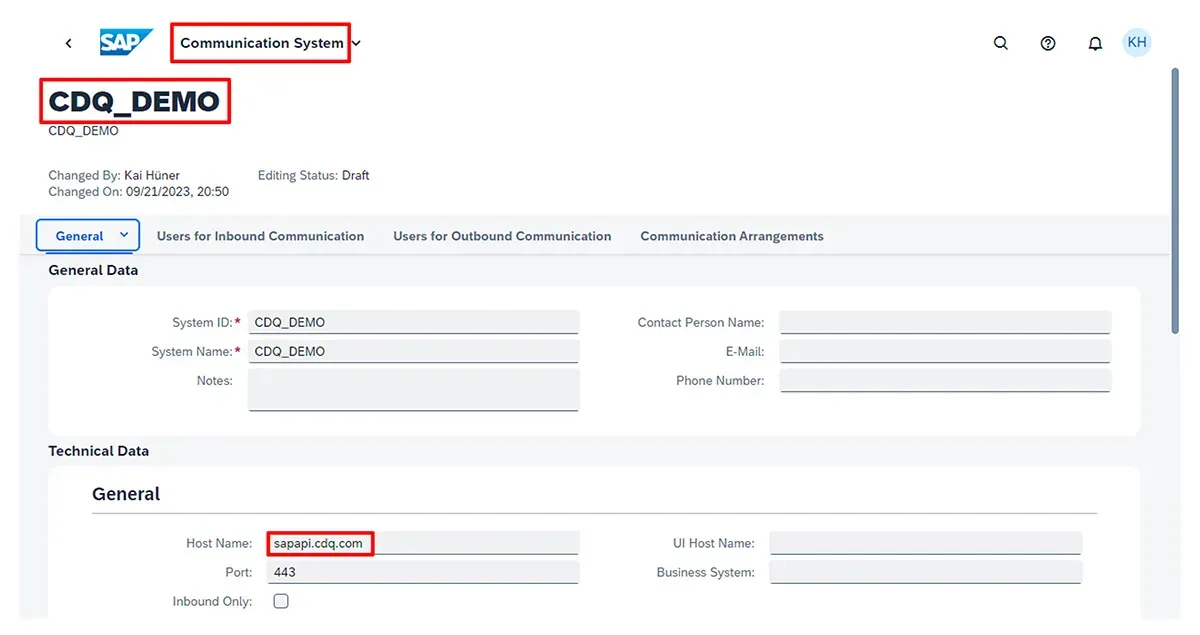
Communication system to access the CDQ API
2. Establish a new user with User Name and Password authentication method for outbound communication
Set the Client ID of the CDQ API key as the User Name and use the Client Secret as the Password.
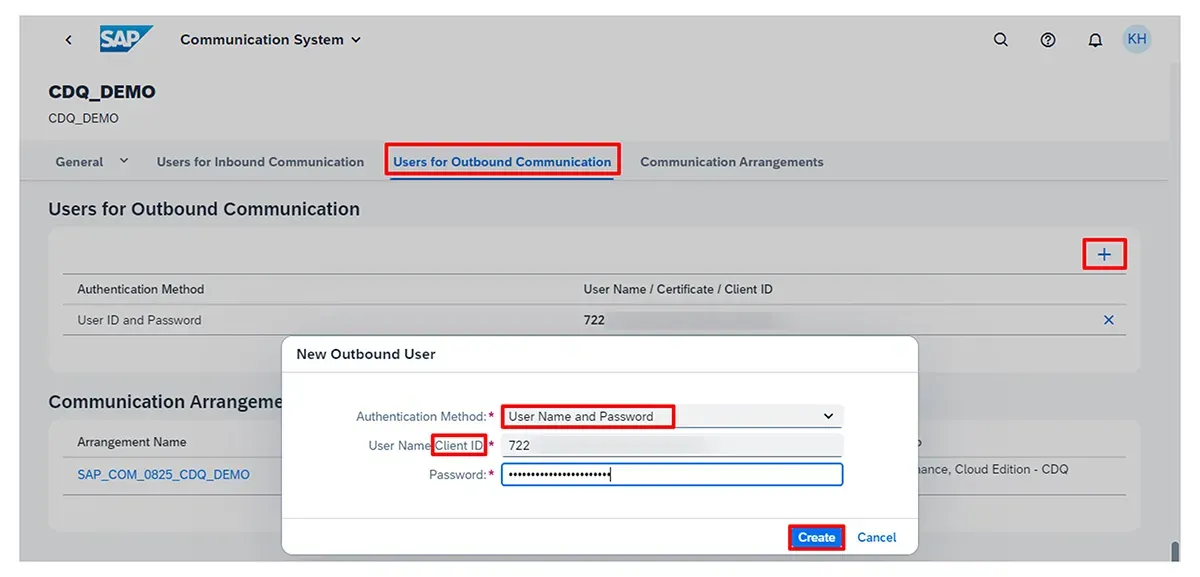
Client ID and Client Secret of the CDQ API key as User ID and Password for the outbound communication
3. Create a new communication arrangement
You will again be using scenario 0825, tailored for integrating desired CDQ services.
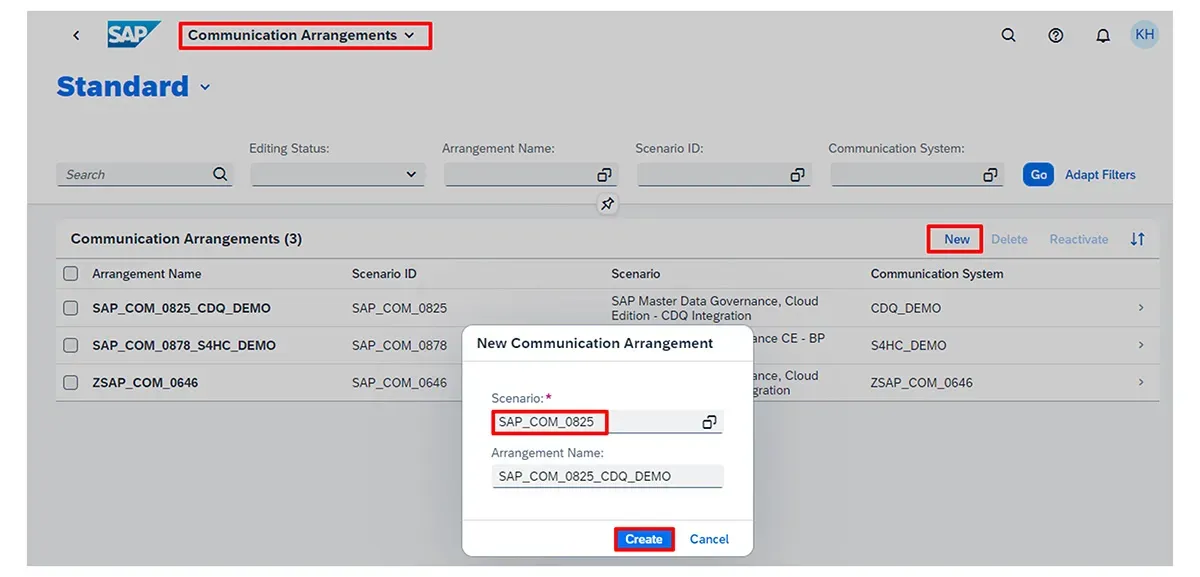
Communication arrangement for CDQ integration
In the arrangement details choose the communication system you’ve created earlier, and the outbound user with CDQ credentials will be automatically configured.
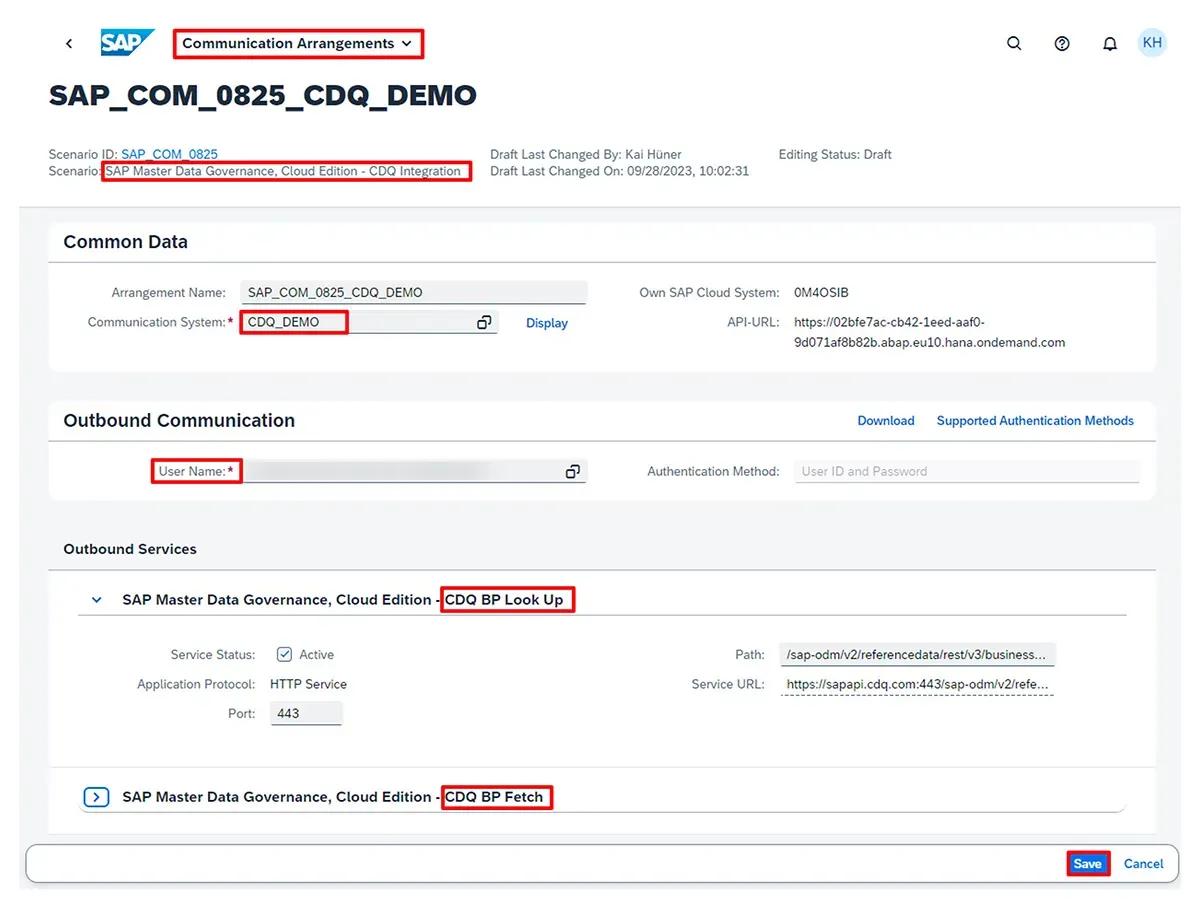
Communication arrangement with CDQ communication system and outbound communication user
4. Install content pack
Return to launchpad and start the Upload Business Configuration app.
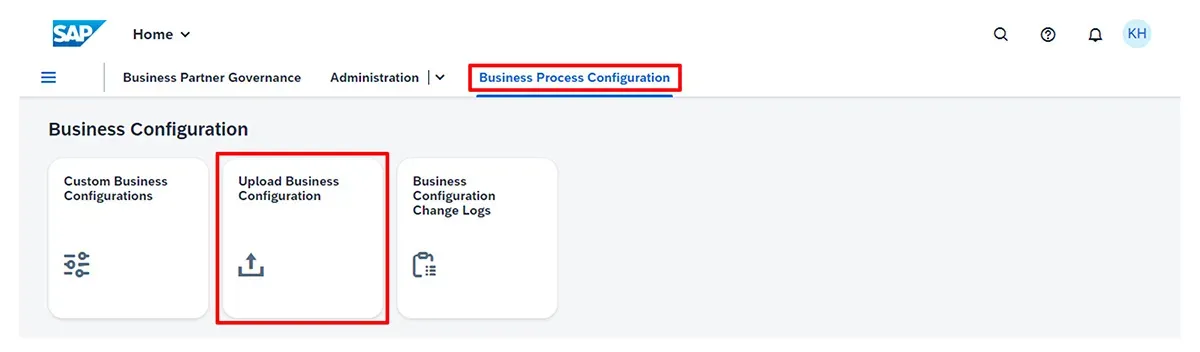
Management app to upload business configurations from the content pack
For each object, such as legal forms or identification types, the process of uploading a business configuration consists of three steps.
1. Begin by selecting the object name TB019. It corresponds to legal forms.
Object selection for business configuration upload
2. Next, attach the Excel file TB019.xlsx (aligned with the object selection) by dragging and dropping it into the designated area of the app.
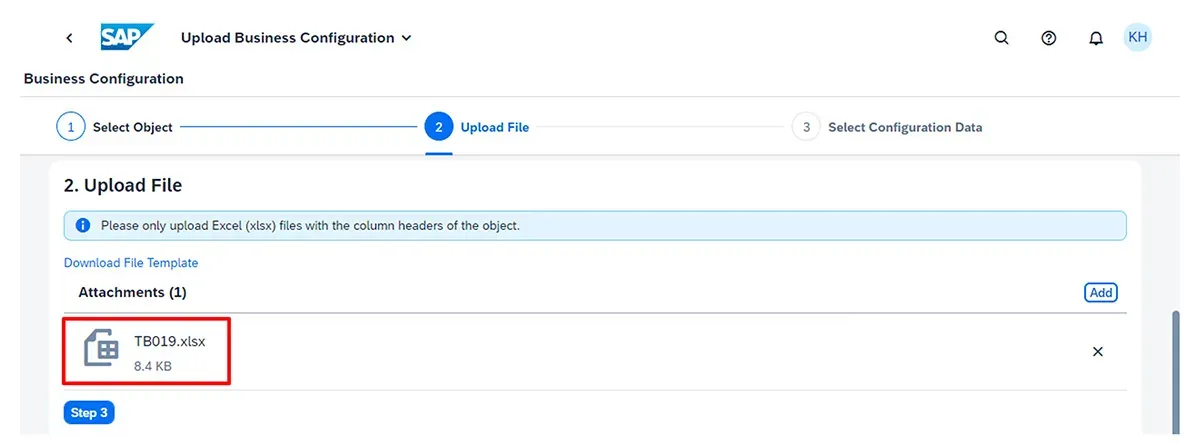
A file from the CDQ content pack as business configuration data
3. The app checks the contents of the file, and if it matches the expected template, all items from the uploaded file will be displayed in a list. Scroll to the bottom of the list, click on Review button, and then hit Deploy.
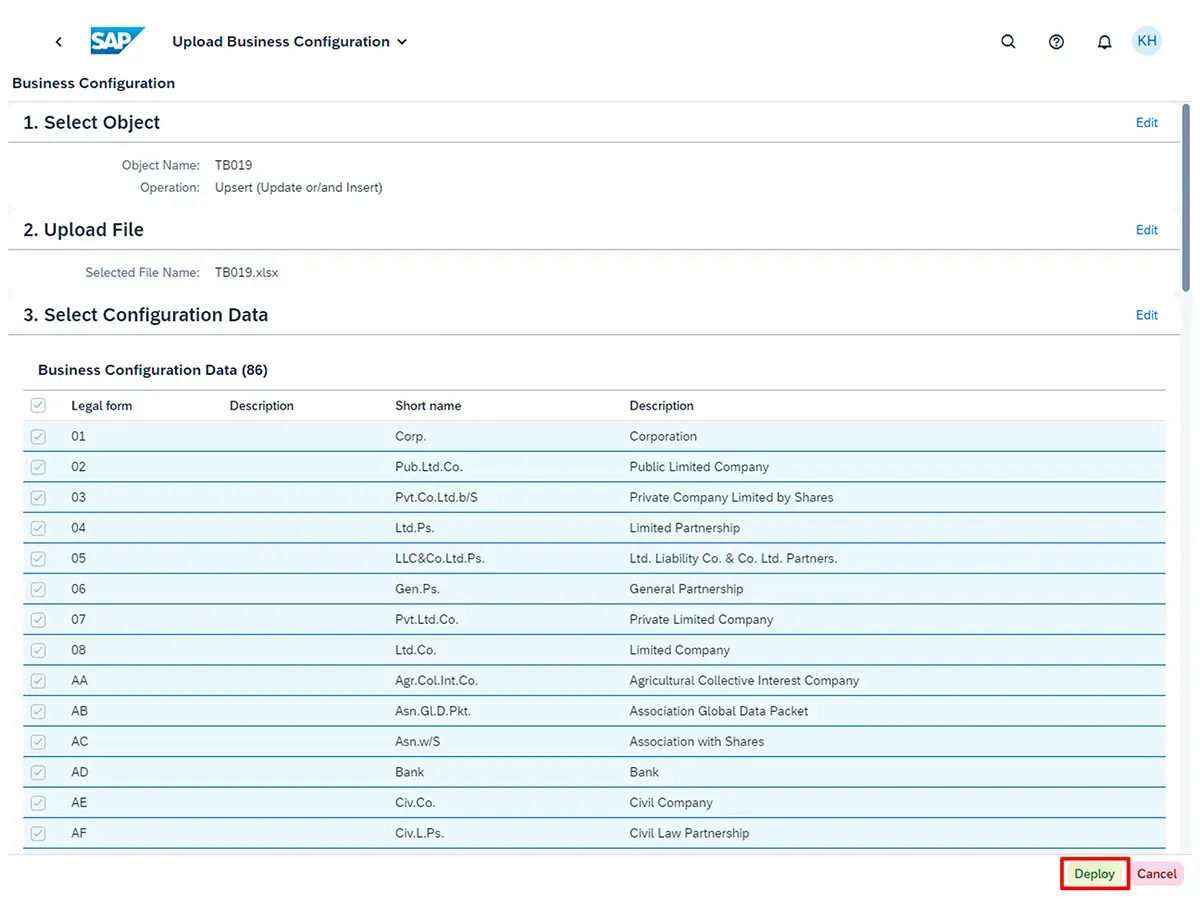
List of business configuration data from the content pack, ready for deployment
Confirm a Request for Change Recording (you’ll receive a deployment log in a confirmation dialog). Metadata from TB019.xlsx updates MDG, cloud edition, instance with the legal forms provided by CDQ, which facilitates the display of relevant fields, value selectors, and more.
You will repeat this process for identification types using V_TB039A.xlsx file and its associated object name.
Beside the upload of CDQ content packs as Business Configuration, this guide also works for SAP MDG on S/4HANA, if you are on the 2023 Release and if you have activated the new Cloud-Ready Mode. See this SAP Blog for further information,